
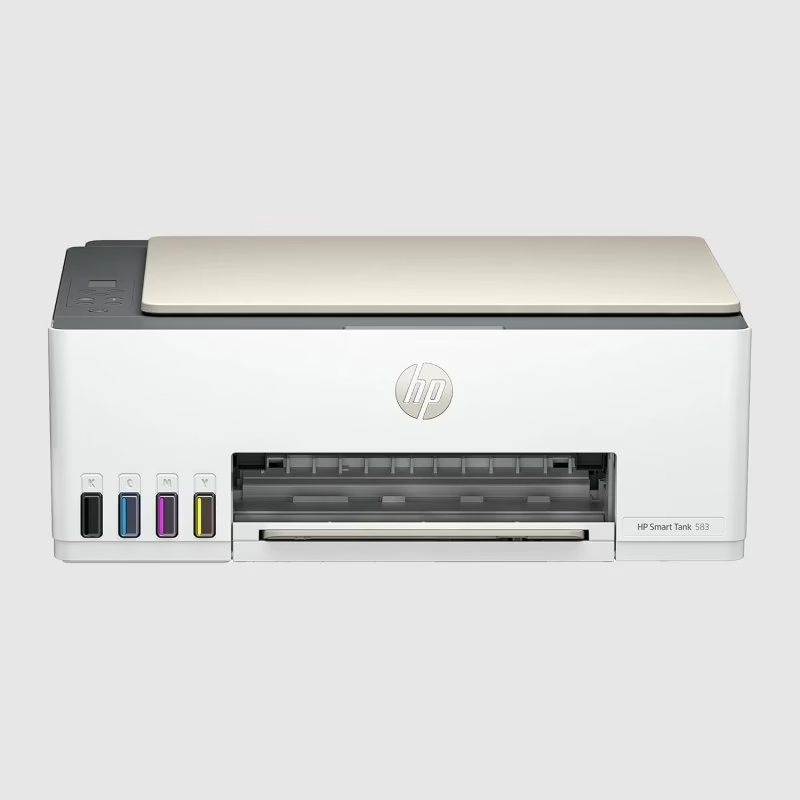
You have a few options to connect your HP Ink Tank Wireless 410 printer to your Wi-Fi network. The most common and recommended methods are using the HP Smart app or Wi-Fi Protected Setup (WPS).
Here’s a breakdown of the steps for each method:
Method 1: Using the HP Smart App (Recommended)
This is often the easiest and most guided way to set up your printer.
-
Prepare your printer:
- Ensure your printer is powered on and has paper loaded.
- Place the printer near your Wi-Fi router.
- Restore Wi-Fi setup mode on your printer: Since you’re adding it to a new network, it’s good practice to reset the printer’s Wi-Fi settings first. For the HP Ink Tank Wireless 410 (which typically doesn’t have a touchscreen), you’ll likely need to press and hold specific buttons. A common method is to press and hold the Wireless button and the Cancel button simultaneously until the Power button blinks, then wait for the Wireless light to blink blue. (This can vary slightly by model, so if this doesn’t work, refer to your printer’s manual or search for “HP Ink Tank Wireless 410 restore Wi-Fi setup mode” on HP’s support site.)
-
Download the HP Smart app:
- On your computer or mobile device (smartphone/tablet), download the HP Smart app. You can find it at 123.hp.com or in your device’s app store (Google Play Store for Android, Apple App Store for iOS, Microsoft Store for Windows).
-
Add your printer in the HP Smart app:
- Open the HP Smart app.
- Create an HP account or sign in if you already have one.
- Within two hours of restoring the Wi-Fi setup mode on your printer, the HP Smart app should guide you through adding the printer and connecting it to your Wi-Fi network. Follow the on-screen prompts to select your Wi-Fi network name (SSID) and enter your network password.
Method 2: Using Wi-Fi Protected Setup (WPS)
This method is quick if your router has a WPS button.
-
Prepare your printer:
- Ensure your printer is powered on and has paper loaded.
- Place the printer near your Wi-Fi router.
- Put your printer in WPS mode: On the control panel of your HP Ink Tank Wireless 410, press and hold the Wi-Fi button for about 5 seconds until the Wireless light starts flashing.
-
Activate WPS on your router:
- Within two minutes of putting your printer in WPS mode, go to your Wi-Fi router and press and hold the WPS button until the connection process begins (you might see a light flashing on your router).
-
Wait for connection:
- Wait for the Wireless light on your printer to stop flashing and become solid blue. This indicates the printer has successfully connected to your Wi-Fi network.
-
Add printer to your computer/device (if not automatic):
- Once the printer is connected to the network, you might still need to add it to your computer’s “Printers & scanners” settings (Windows) or “Printers & Scanners” preferences (macOS).
Method 3: Manual Wi-Fi Setup via Embedded Web Server (EWS) – More advanced
This method is useful if the above methods don’t work or if you prefer manual configuration. You’ll need to temporarily connect your computer or mobile device directly to the printer’s Wi-Fi Direct network.
-
Find Wi-Fi Direct name and password:
- On your HP Ink Tank Wireless 410, press the Information button to print an Information Report. This report should contain the printer’s Wi-Fi Direct name (e.g., “DIRECT-HP-InkTankWireless410”) and the password.
-
Connect your device to the printer’s Wi-Fi Direct network:
- On your computer or mobile device, go to your Wi-Fi settings and look for a network name starting with “DIRECT-HP-” followed by your printer model.
- Connect to this network using the Wi-Fi Direct password you found in the Information Report. This connection is temporary.
-
Access the Embedded Web Server (EWS):
- Open a web browser on your connected device.
- In the address bar, type 192.168.223.1 and press Enter.
- If prompted, enter “admin” for the username (if applicable for your model) and the PIN from the printer label (often inside the cartridge access area or on the back/bottom of the printer).
-
Configure Wi-Fi settings:
- In the EWS, navigate to Network or Networking > Wireless (802.11) > Wireless Setup Wizard.
- Follow the on-screen instructions to select your home Wi-Fi network name (SSID) and enter its password.
- Once the connection is complete, the printer’s Wireless light should become solid blue.
-
Reconnect your device:
- Remember to disconnect your computer/mobile device from the printer’s Wi-Fi Direct network and reconnect it to your regular home Wi-Fi network.
Important Notes:
- Printer near router: For best results during setup, keep your printer close to your Wi-Fi router.
- 2.4 GHz network: The HP Ink Tank Wireless 410 typically supports only 2.4 GHz Wi-Fi networks. If your router has both 2.4 GHz and 5 GHz bands, ensure you’re connecting to the 2.4 GHz band.
- Drivers: After connecting to Wi-Fi, you might need to install the full printer drivers on your computer for all functionalities. The HP Smart app often helps with this, or you can visit support.hp.com and search for your printer model to download the latest drivers.
- Troubleshooting: If you encounter issues, restart your printer and router, and try the steps again. You can also refer to the HP support website or the user manual for your specific printer model for more detailed troubleshooting.
